
Drop a PDF or choose one from your device.
ReduceImageSizePDF to image
PDF to Image Converter
Convert PDF pages to PNG, JPG, or WEBP on your device. No account. No server upload for conversion.
Loading converter…
Why this tool exists
I built this because I kept needing a single page out of a PDF as a normal image — for a form, a slide, a chat upload, or a quick preview — and I did not want to install desktop software or send the file to a random upload service.
So the product is intentionally small: drop a PDF, pick an output format, convert, download. One job. Done in the browser.
How conversion works
Your browser reads the PDF, draws each page onto a canvas, then exports that drawing as PNG, JPG, or WEBP. That is why the file never needs to leave your device for the conversion step.
Pick PNG, JPG, or WEBP. Set all pages or a range.
Pages render locally. Watch progress as each page finishes.
Save one image, or download every page as a ZIP.
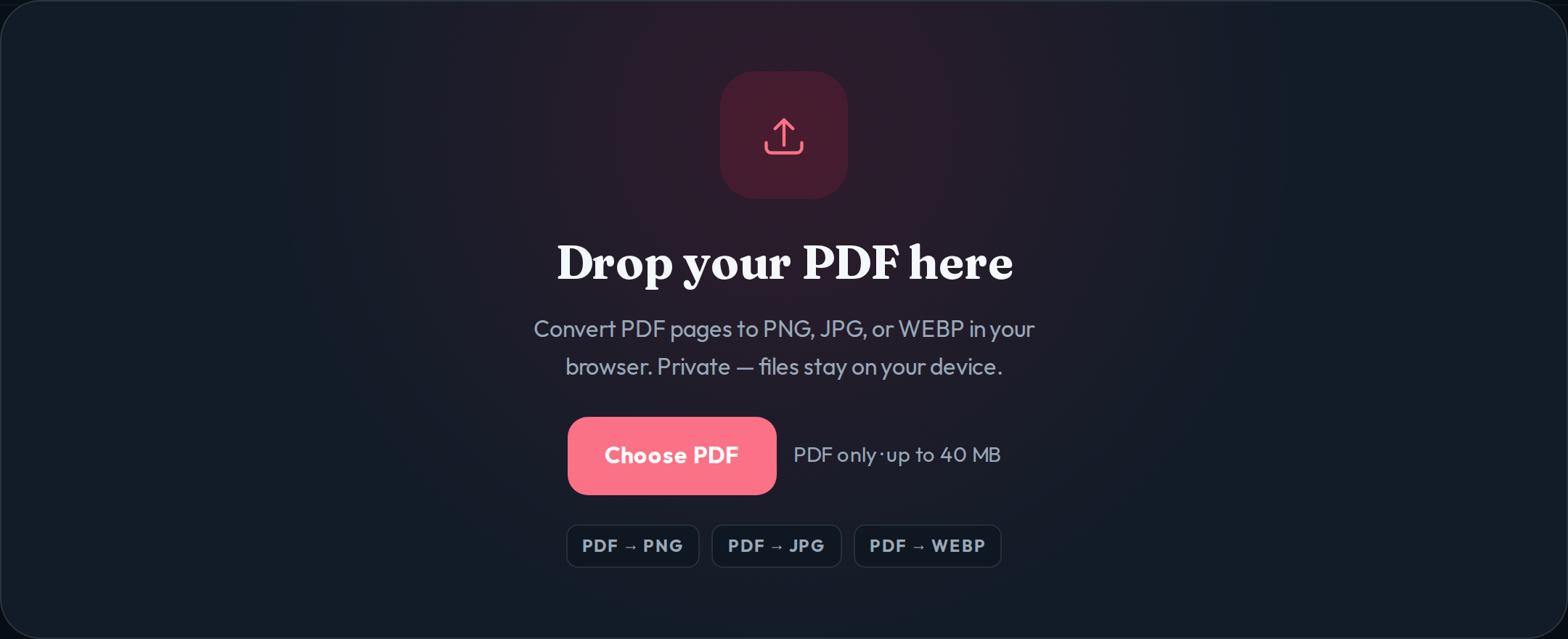
You should see a large drop area, a Choose PDF button, and a short note that conversion stays on your device.
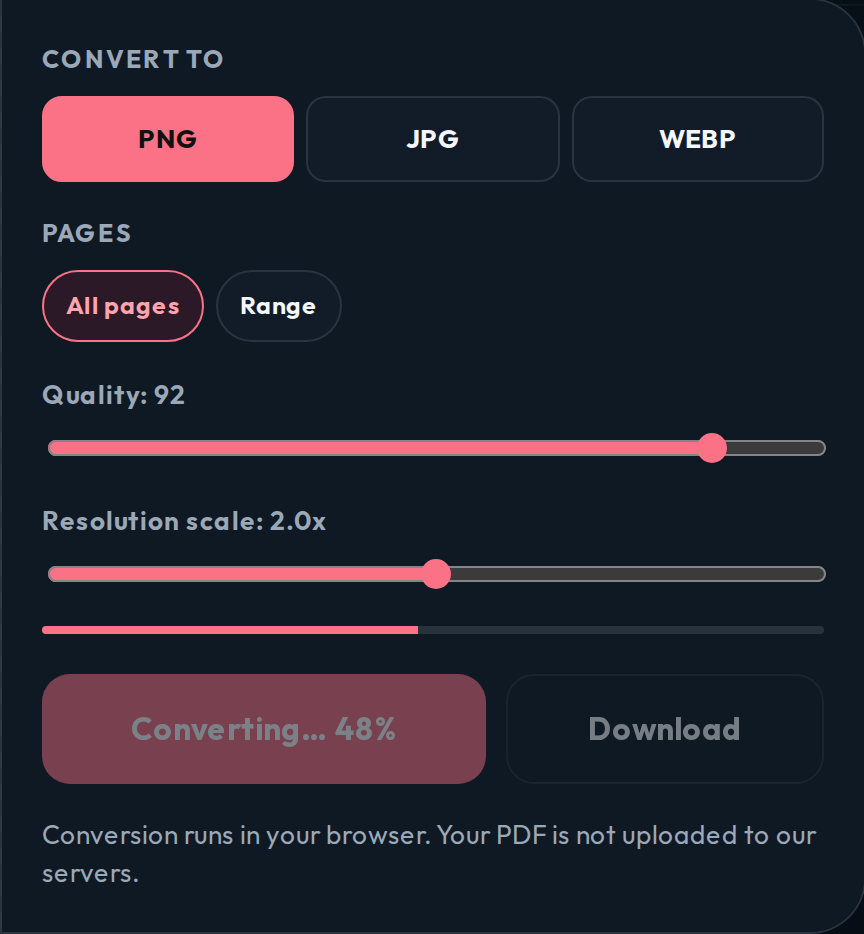
After you start conversion, the button shows progress while each page is rendered.
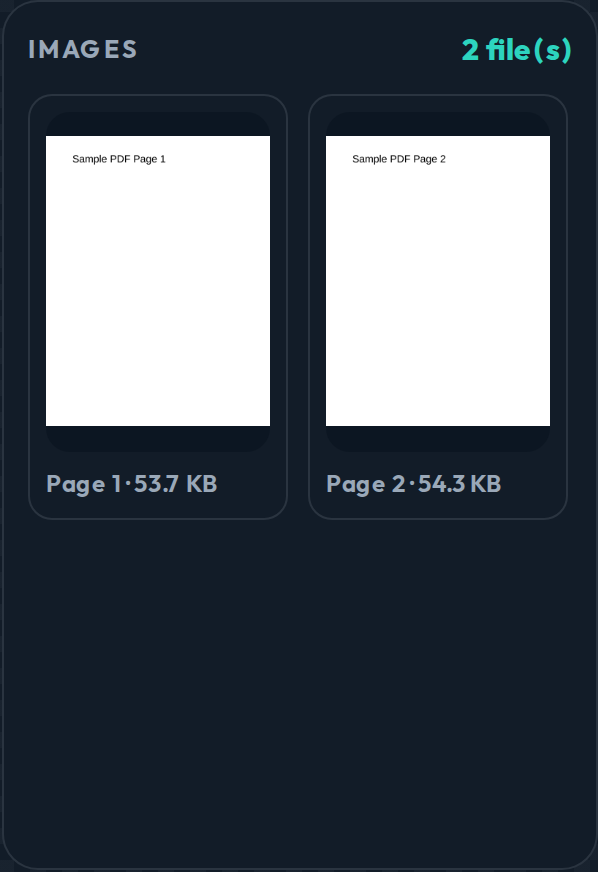
Finished pages appear as thumbnails with page numbers and file sizes so you can check the result before downloading.
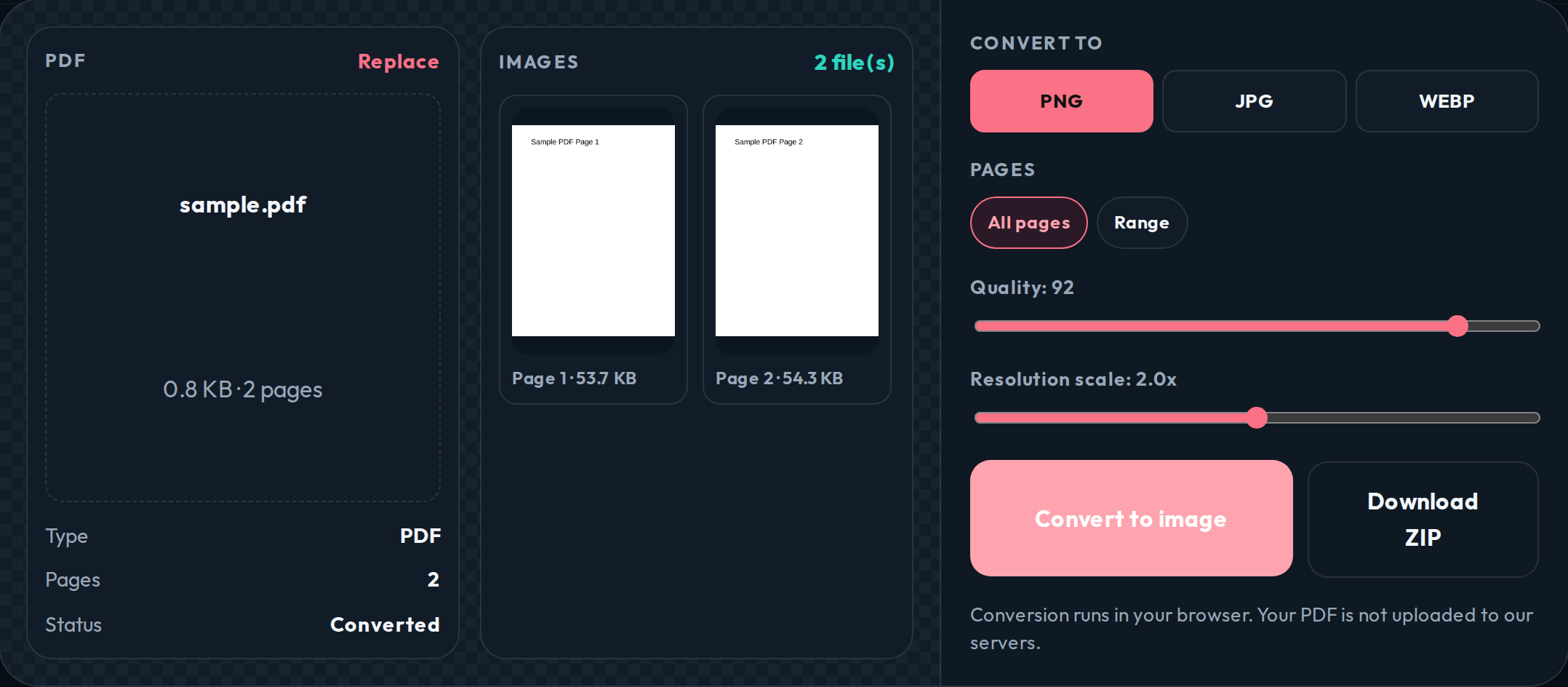
Download a single page by clicking its thumbnail, or use Download / Download ZIP for the full set.
When to use it
- You need one PDF page as a JPG or PNG for a form or email
- You want quick previews of a multi-page PDF without opening desktop software
- You prefer converting a file locally instead of uploading it to a third-party host
- You need WEBP for a lighter web asset from a PDF page
Limitations (read this first)
Honest boundaries matter more than marketing claims. This converter is good at page snapshots. It is not a full PDF editor.
- Password-protected PDFs are not supported yet
- Very large or heavily scanned PDFs can be slow on older phones
- Output is a flat image — text is not selectable after conversion
- Complex print-ready PDFs may need a higher resolution scale for small type
- Current upload limit is 40 MB
Privacy
Conversion is designed to run in your browser. Your PDF is not stored on our servers as part of the convert step. If you leave the page, the working images in memory are gone with the session.
We may use basic analytics to understand page visits. That is separate from your PDF file. Details are on the Privacy Policy page.
Supported formats and output choices
Input: PDF.
Output: PNG (clean for screenshots and text), JPG (smaller for photos), WEBP (good balance for web use).
Use a higher resolution scale when the page has small text. Use a lower scale when you only need a quick preview.
How we test the converter
Before shipping changes, I run the same path a user takes: open the homepage, drop a PDF, convert, check page order, download a single page, then download a ZIP for multi-page files.
Digital text PDFs usually convert quickly. Scanned pages take longer because every page is drawn at the selected scale on your device. If a file fails, the usual causes are password protection, a damaged PDF, or a format the browser cannot decode.
Site quality checks (Ahrefs)
An Ahrefs Site Audit of reduceimagesizeonline.com (July 2026) scored Health 99. The crawl flagged one sitemap error (a 3XX URL listed in sitemap.xml) plus warnings from the older multi-page structure: long titles, missing H1s on thin/redirect URLs, and internal links that hit redirects.
Those issues are addressed by keeping the public site to five indexable URLs (home, about, contact, privacy, terms), listing only final 200 OK URLs in the sitemap, using short absolute titles (no brand suffix doubling), and giving every public page a clear H1. Legacy tool, blog, and article URLs still 301 to home on purpose so old links do not 404. Admin routes stay noindex.
Best practices
- Start with an unlocked PDF
- Use PNG when sharp text matters
- Raise resolution scale before converting small print
- Convert a page range when you only need part of a long document
- Check the preview thumbnails before downloading the ZIP
Troubleshooting
- Nothing happens after upload: confirm the file ends in .pdf and is under 40 MB
- Conversion fails immediately: the PDF may be password-protected or corrupted — open it in a reader first
- Text looks soft: increase resolution scale and convert again
- Phone feels slow: convert fewer pages at a time, or use a laptop for large scanned files
Why trust this tool
Privacy commitment
Conversion is built around browser-local processing. Your PDF is not our archive.
Quality standards
Preview before download. You choose format, quality, and scale — no hidden recompression after export.
Continuous improvements
The product stays focused on PDF → image. Features are added when they help that job, not to pad a tool directory.
Supported browsers
Current Chrome, Edge, Firefox, and Safari. JavaScript must be enabled.
Editorial standards
This page describes what the tool actually does. If a limit exists, it is listed here instead of buried.
Version history
Current public version focuses on PDF → PNG / JPG / WEBP, page ranges, and ZIP download. Updated July 26, 2026.
Who this is for
Students, office workers, sellers, and anyone who needs a PDF page as a regular image without installing software. If you need OCR, form filling, or PDF editing, use a dedicated editor — this tool is for conversion only.
Frequently asked questions
Is my PDF uploaded to a server?
No. Conversion runs in your browser. The PDF is read on your device and rendered to images locally. We do not store your file on our servers for conversion.
Can I convert a multi-page PDF?
Yes. Convert every page, or set a page range. Each page becomes its own image. Multiple pages download as a ZIP.
Does image quality drop when I convert?
You control quality and resolution scale before converting. Higher scale means sharper output and larger files. Preview the result before you download.
Can I convert password-protected PDFs?
Not in the current version. Remove the password in a PDF reader first, then convert the unlocked file here.
Will layout and fonts look the same?
Each page is rendered as a flat image of what the PDF viewer draws. Text stays readable when resolution is high enough, but you cannot edit the text afterward.
Can I use this on my phone?
Yes. It works in modern mobile browsers. Large PDFs may take longer on older phones because rendering uses your device CPU.
How long does conversion take?
Short digital PDFs usually finish in a few seconds. Scanned or very large files take longer because every page is drawn to a canvas on your device.
What output formats are supported?
PNG, JPG, and WEBP. Pick the format before you convert.